
Introduction
Not every email deserves a response. Some don't even deserve inbox space. If someone keeps emailing you and you're done dealing with it, blocking them is the quickest fix, though Gmail's block feature comes with a few limitations most people don't find out about until later.
In this guide, we'll look at how you can block a sender in Gmail using both the desktop and the mobile app, what the limitations of Gmail blocking are, and how you can get around those.
What Happens When You Block Someone On Gmail
What Gmail blocking essentially does is move the emails from the blocked sender to the Spam folder instead of your primary inbox.
When you block someone in Gmail, all future emails from that sender will automatically land in the Spam folder. The blocked emails will remain in the Spam folder for 30 days, after which they will be automatically deleted.
The sender will not be notified that you blocked them, and they will still be able to email you.
Also, blocking is one-directional. You can block a sender but still email them, but any responses to that email will land in your Spam folder.
How to Block a Sender in Gmail (Desktop)
To block someone on the Gmail desktop, follow these steps:
- Open the email from the sender you wish to block.
- Click on the three-dot menu to the right.
- Select the "Block [sender]" option from the menu.

- Click the "Block" option in the pop-up menu.

Once you block the sender in Gmail, all future emails from the sender will automatically skip the inbox and land in your Spam folder.

Note: If you want the blocked emails to be permanently deleted, read this section.
How to Block a Sender in Gmail (Mobile)
To block someone on Gmail using the mobile app, follow these steps:
- Open the email from the sender you wish to block.
- Click on the three-dot menu to the right of the sender's name.
- Select the "Block [sender]" option from the menu.

Once you block the sender in Gmail, all future emails from the sender will automatically skip the inbox and land in your Spam folder.
Note: If you want the blocked emails to be permanently deleted, read this section.
How to Block an Email Without Opening It
Because some senders use email tracking, you want to block emails without even opening them. There are two ways to block an email without opening it:
- Using Gmail filters
- Using Block Sender (Quick and Easy)
Using Gmail Filters
Note: Gmail filters can only be set up using the browser.
- Click on the "Show search options" in the toolbar.

- In the From field, type the email address of the sender you want to block.
- Click the "Create Filter" button at the bottom.

- Select the "Delete it" option.
- Click "Create filter".

With this Gmail filter set up, all future emails from the filtered email address will automatically be deleted (sent to the Trash folder).
Using BlockSender (Quick and Easy)
The above method of blocking emails without opening them requires setting a Gmail filter. If you want a quicker and easier solution, try Block Sender.
- Install the Block Sender extension or skip the install and use the dashboard.
- Link your Gmail account.
- Select the email you want to block and click the Block icon in the toolbar.
- Select the "Block Selected emails" option from the dropdown.

- Click "Create 1 Block" to finish creating the block.

How to Unblock Someone on Gmail
Desktop
Here's how you can unblock someone on Gmail if you wish to receive emails from them in your inbox again.
- Click on the gear icon at the top right.
- Select "See All Settings" from the dropdown.

- Navigate to "Filters & Blocked Addresses".
- Click the "Unblock" button next to the sender you wish to unblock.

- Select the "Unblock" option in the pop-up menu.

Mobile
Unblocking a sender using the Gmail mobile app is not straightforward. The Gmail mobile app doesn't let you view the list of all blocked senders in one place, like in the browser.
To unblock a sender on the Gmail mobile app, follow these steps:
- Find an email from the blocked sender in the Spam folder.
- Click the "Unblock Sender" below the sender's name.

How to Permanently Block An Email Address in Gmail - Block Sender
Gmail doesn't have a feature to block emails in the true sense. What blocking does is simply moves the emails from the blocked sender to the Spam folder.
This can be especially distressing if you're receiving harassing emails. You may want to block the sender completely to regain your peace of mind.
If you want to permanently block a sender in Gmail so that their emails automatically get deleted from your account, try Block Sender.
Block Sender for Gmail is an email productivity tool that allows you to block senders in the true sense of the word. You can customise your blocks so that emails from the blocked sender are instantly deleted from your account.
- Install the Block Sender extension or skip the install and use the dashboard.
- Link your Gmail account.
- Click on the Block icon in the toolbar.
- Select "New Block" from the dropdown menu.

- In the "Email to Block" field, type the email address of the sender you want to block.
- Select "Delete (skip trash)" from the dropdown.

- Click Save.
When Blocking Isn't Enough…
If you're dealing with a bad case of email stalking, simply blocking the sender may not be enough. They might reach out using other email addresses.
In that case, you may want to make them think your Gmail account no longer exists. This way, they'll get discouraged from emailing you.
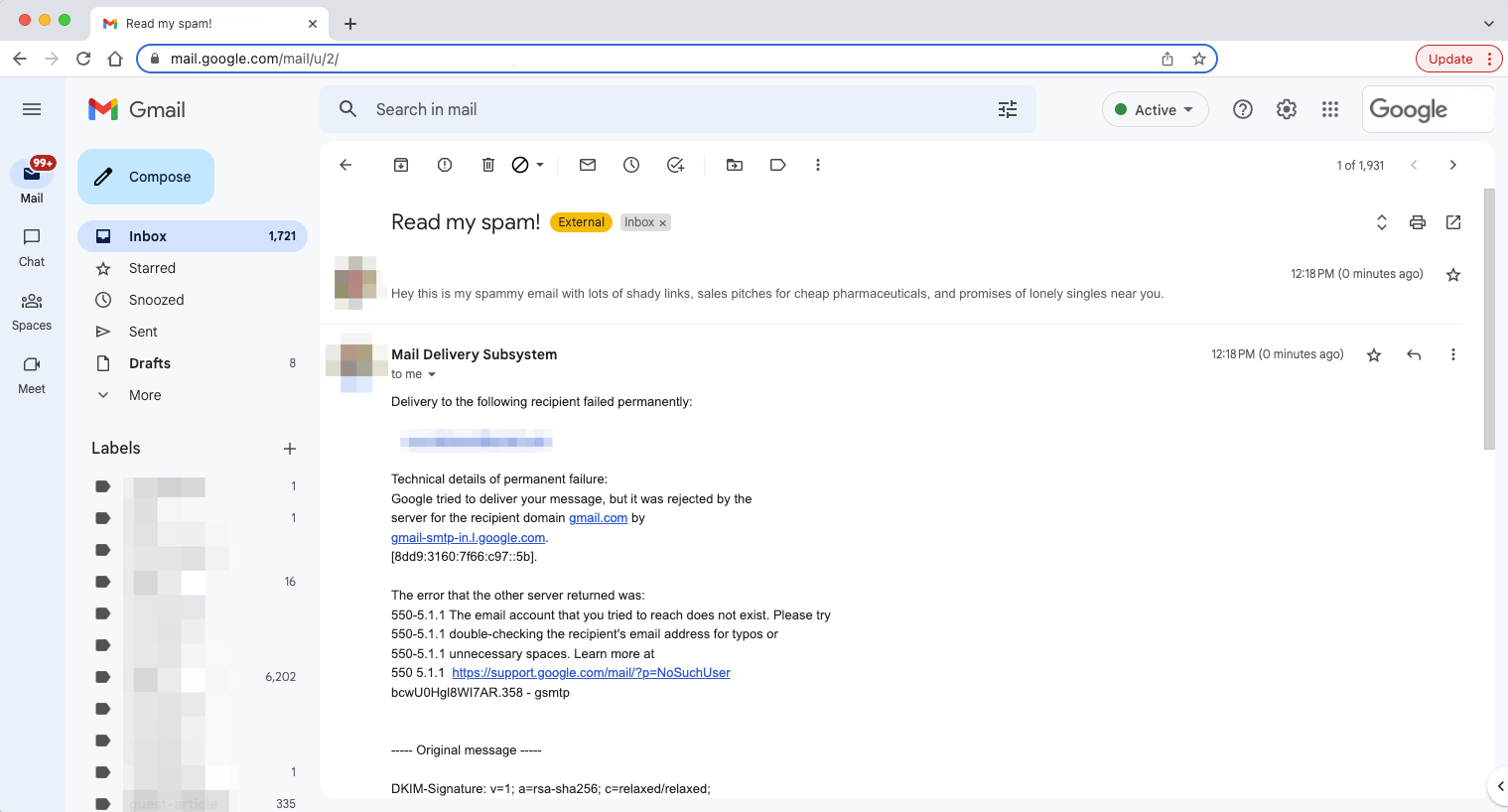
With Block Sender, you can send a real-looking bounce-back email to the sender, making them think their emails aren't being delivered to you.
To do so, follow these simple steps:
- Click the Block icon in the toolbar (make sure the Block Sender extension is installed).
- Select "New Block" from the dropdown.
- In the "Email to Block" field, type the email address of the sender you wish to block.
- Select "Fake bounce back" for auto-response.

- Click Save.
Next time the sender emails you, they will get this response:
Conclusion
Gmail's blocking feature helps keep unwanted emails out of your inbox, but it doesn't stop them completely. It just sends them to Spam. For stronger control, you can use filters or third-party tools to delete emails automatically. Choosing the right method depends on how persistent the sender is and how much control you need over your inbox.
