
Introduction
Are you subscribed to a ton of emails that you rarely read, and they only sit cluttering your inbox? Managing email subscriptions can be a hassle. Newsletters that you never read, promotional emails you never open, surveys and feedback requests or social media updates, and the list goes on.
If you ever decide to lighten the load on your inbox and unsubscribe from unwanted email subscriptions, you'll notice that the process is far from easy. It involves sifting through the inbox, finding emails you're subscribed to and unsubscribing from each sender individually.
If that sounds like a lot of work, which, honestly, it is, you'll be relieved to know that Gmail recently launched a feature that makes the process a whole lot easier. It's called Manage Subscriptions. It helps you manage all your email subscriptions in one place.
If that sounds interesting, give this article a read and find out how to use the new Manage Subscriptions feature in Gmail, its limitations and how Block Sender goes even beyond that.
What is Gmail's New "Manage Subscriptions" Feature?
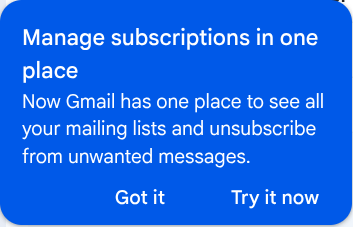
Gmail recently launched a new feature, Manage Subscriptions, which lists all your email subscriptions in one place so you can easily manage them and unsubscribe from unwanted emails.
You can find it by opening the main menu on the right side of Gmail and clicking "More" > "Manage Subscriptions".
Here, you'll find all the emails you're subscribed to in one centralized place. What's more is that the subscriptions are categorized by frequency, so the senders who email you the most appear at the top.
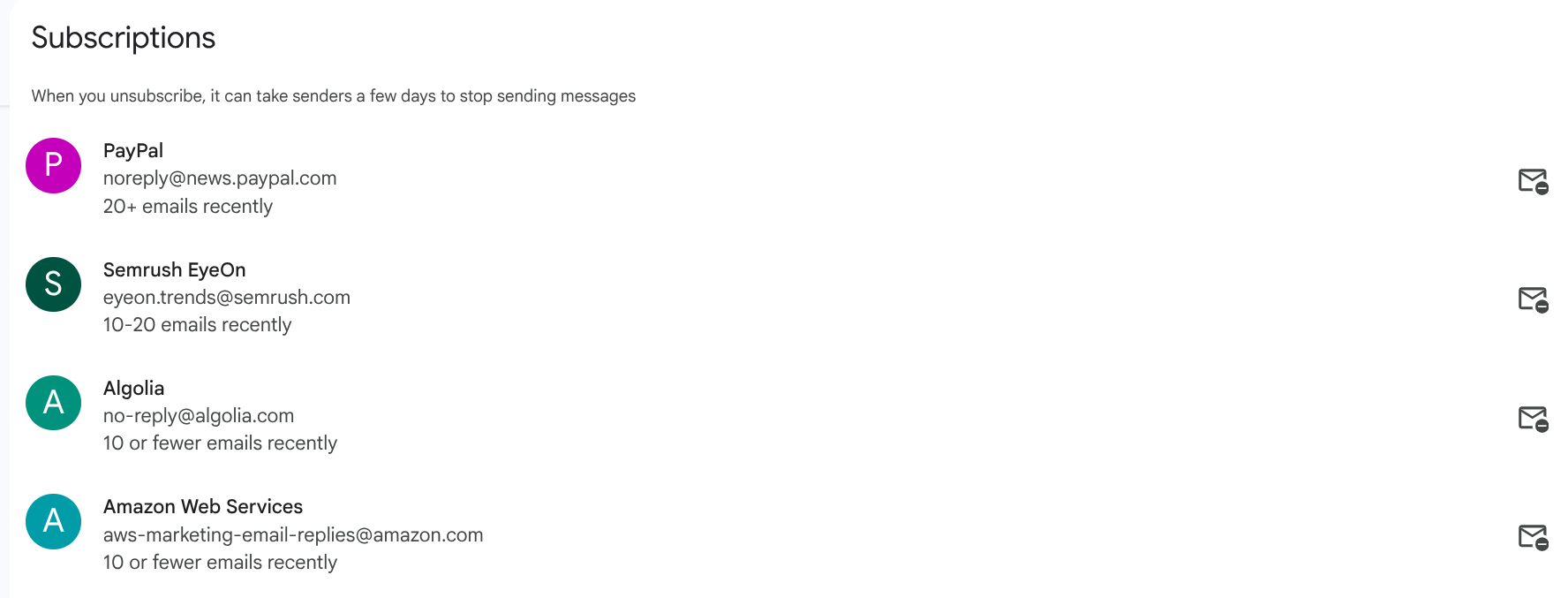
You can click on any sender to view all the emails you received from them in your inbox and decide whether you want to unsubscribe or not.
Another useful aspect of this feature is the one-click unsubscribe option. You don't have to search for the unsubscribe link, which is usually hidden somewhere at the bottom of emails. This new feature displays an unsubscribe button next to each sender, simplifying the process.
How to Access and Use the Feature
The Manage Subscriptions feature of Gmail is quite new and has been gradually rolling out. You can check if it's available to you by opening the main menu on the right side of Gmail and clicking "More" > "Manage Subscriptions".
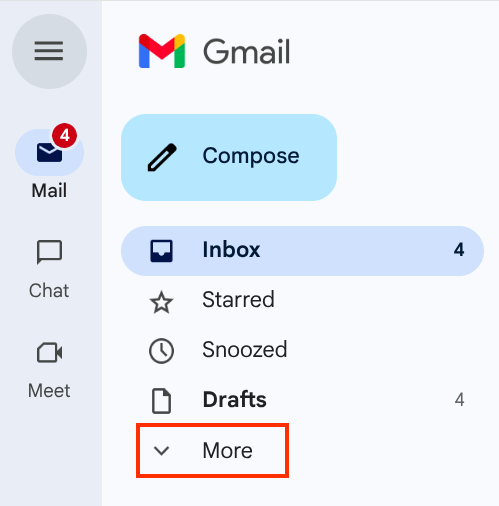
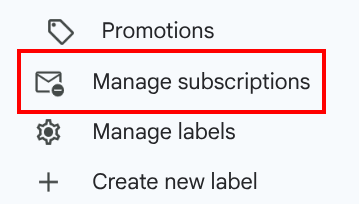
Here, you can find the list of all mailing lists you're currently subscribed to. The senders are sorted by frequency. The senders who've been mailing you the most frequently appear at the top.
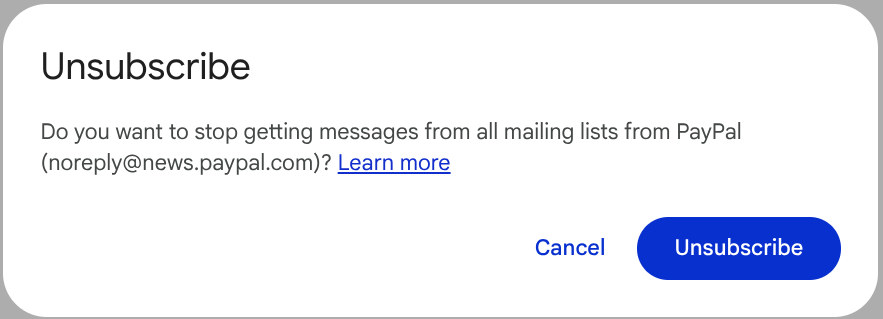
Next to each sender, you'll find an unsubscribe button. If you click it, a pop-up box will appear for confirmation to unsubscribe you from all mailing lists from that particular email address. In some cases, you cannot unsubscribe directly but have to visit the website instead.

Pros and Limitations of the New Feature
The new Manage Subscriptions feature introduced by Gmail is really useful to view and manage all your email subscriptions in one centralized place.
Pros
- Centralized view of all email subscriptions
- Easy 1-click unsubscribe
- Helps you maintain a cleaner inbox
Limitations
- Only works for email subscriptions and not personal or one-time emails
- No option for blocking the sender
- The sender may not remove you from their mailing list despite your unsubscribing
- You may need to visit the website to unsubscribe
- Unsubscribing may take some time to take effect
How Block Sender Complements Gmail's New Feature
Gmail's new feature "Manage Subscriptions" makes it quicker to unsubscribe from unwanted emails, but it also has some shortcomings, such as unsubscribe not working or needing to visit the website. Block Sender for Gmail is the perfect solution to these issues.
Block Sender for Gmail is an email blocking and productivity tool that helps you get rid of unwanted and annoying emails without even unsubscribing.
With Block Sender, you can:
- Block emails by email address, domain, keywords, IP address (included in paid plans) and more
- Complete blocking - not just unsubscribing
- Works for blocking individual emails as well, not just email subscriptions
- Canned response to make the spammer think their emails aren't getting delivered to you or that your email address doesn't exist (bounce-back emails)
- Blocking takes immediate effect, unlike unsubscribing
Installing Block Sender doesn't take long. Once installed, open Gmail, sign up for Block Sender and link your Gmail account.
- To block a sender, open any email received from them.
- Click on the Block icon in the toolbar.
- Select "Emails from this sender" or "Emails from this domain".
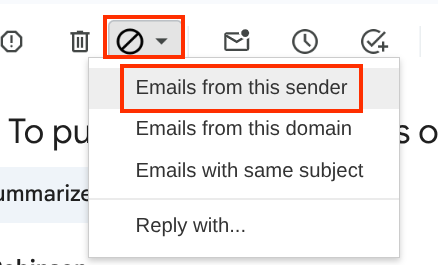

Note: The domain blocking option blocks emails from all addresses ending in a particular domain, for example, facebook.com.
Any future emails from the block email address or domain will now automatically move to the Spam folder. You can also configure the settings to completely block the emails so that they don't even show up in the Spam folder. To do so,
- Click on the Block icon in your Gmail inbox.
- Select the "Manage Blocks" option from the dropdown.
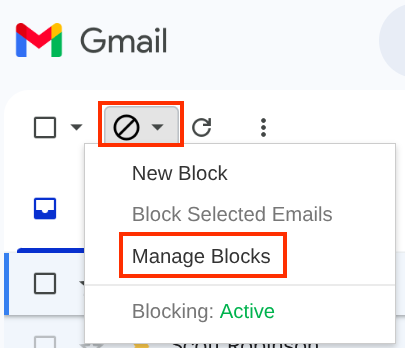
- Find the block you want to edit and click Options > Edit.

- From the pop-up window, select Delete (Skip Trash) from the dropdown and click Save Changes.
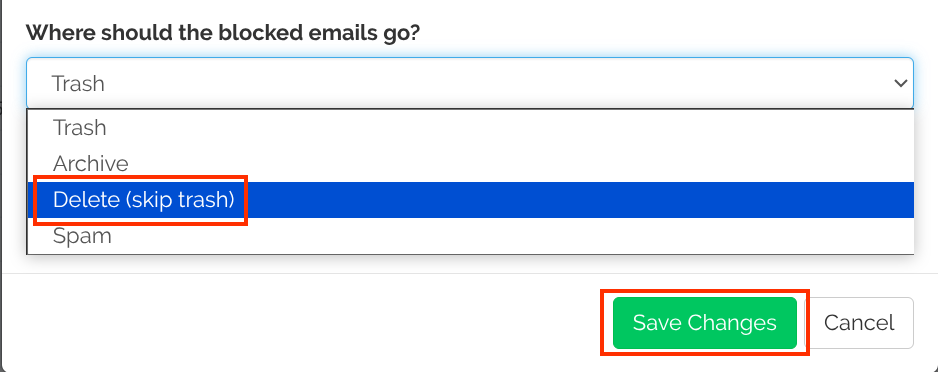
Now, all the blocked emails will be automatically deleted from your account instead of going to the Spam folder.
Note: This Delete (Skip Trash) option permanently deletes the emails beyond recovery, so use it cautiously.
Conclusion
Gmail’s Manage Subscriptions feature offers a much-needed solution for organizing and unsubscribing from marketing emails in one place. It’s simple, user-friendly, and helps reduce inbox clutter. However, it doesn't cover all scenarios - some senders might ignore unsubscribe requests, and it doesn’t allow you to fully block emails.
That’s where Block Sender comes in. It goes beyond unsubscribing by letting you block emails entirely, whether they’re from subscriptions, individuals, or even entire domains. Together, Gmail’s new feature and Block Sender can help you take back control of your inbox with minimal effort.
